The Seating Plans screen allows you to configure the layout of a room.
To change the layout of a room:
-
Select the relevant room in the Seating Plans pane.
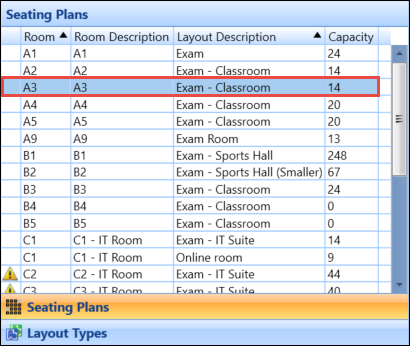 Important.Records with a greater number of active seats than the room capacity are displayed with a warning icon.
The room layout is displayed in the right-hand pane.
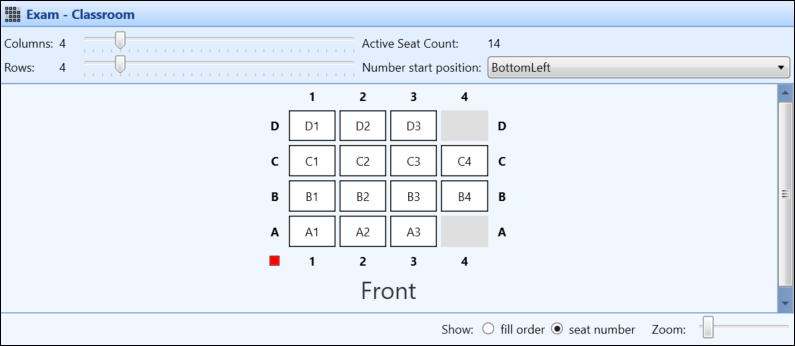
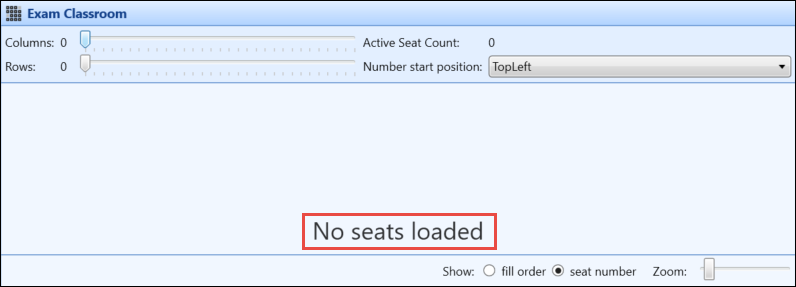
If no seats have been loaded yet, the No seats loaded message is displayed.
 Important.A room layout cannot be edited if candidates have already been allocated to the seats. A warning message is displayed.
-
Make the relevant changes to the room layout.
The following functionality is available to assist in configuring the room layout:
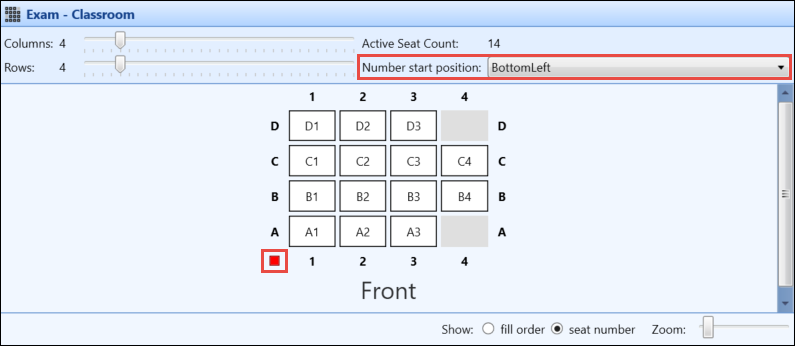
- The Columns and Rows sliders allow you to set the number of seats in a row or column
-
The Active Seat Count field displays the number of active seats in the room layout
Important.A warning icon is displayed if the number of active seats is greater than the room capacity. A tooltip is available on the icon which displays the room capacity.
-
The Number Start Position field allows you to indicate where to start numbering the seats from. This is indicated by a red square in the room layout.
-
Seats can be activated or deactivated (for example: to allow for oddly-shaped rooms or to create space for invigilator use) by select and hold (or right-click)ing on a seat and selecting Activate or Deactivate
Important.Active seats are displayed with a white background and inactive seats are displayed with a grey background.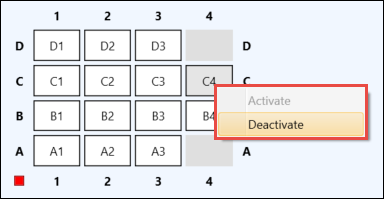
-
Select whether to display the fill order or seat number by selecting the relevant radio button

- Use the Zoom slider to zoom in or out of the room layout
- Select Save .